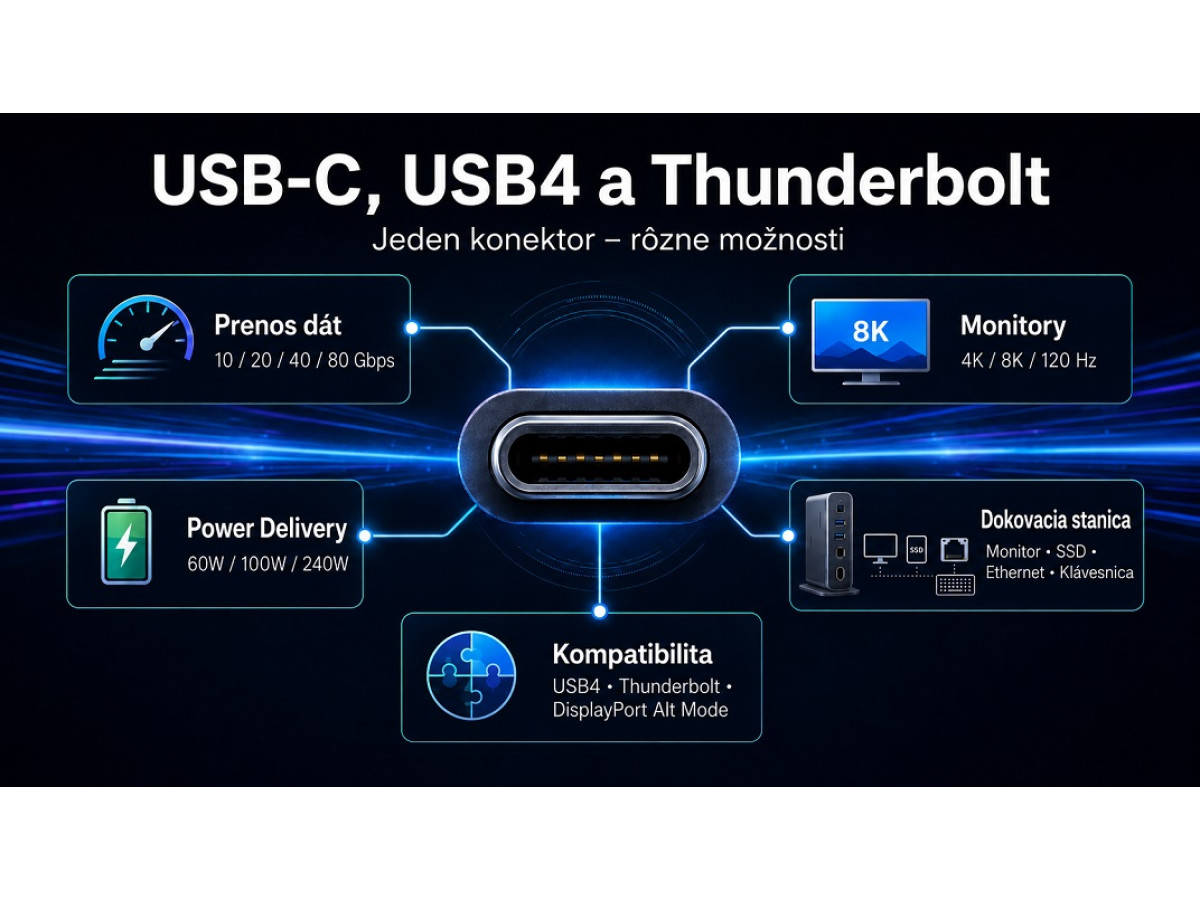
You’ve bought a new laptop with USB-C. You’ve bought a monitor with the same connector too. You plug them in, but it doesn’t work. Or it only works half the time. Or there’s a picture, but it’s not the right one. Sound familiar? The problem is that USB-C is just a port standard. They all look the same on the outside, but what’s inside is a different matter. One simply charges a smartphone and transfers files. The other powers 4K displays, fast SSDs and even an external graphics card. And there’s no difference on the outside.
This is where all the confusion starts. Because USB Type-C is a connector, a form factor. Whereas USB4, Thunderbolt 4 or 5 are data transfer standards – what happens inside that very port. DisplayPort Alt Mode handles video, whilst Power Delivery handles charging. And all of this may or may not be present in a single port. That’s why two laptops with the same connector can easily have completely different capabilities. Before buying a cable, monitor or docking station, it’s worth figuring out exactly what your port is capable of and how USB-C and Thunderbolt compatibility works. That’s exactly what we’ll cover next. Plus lots more useful information.
Labelling and visual identification of ports
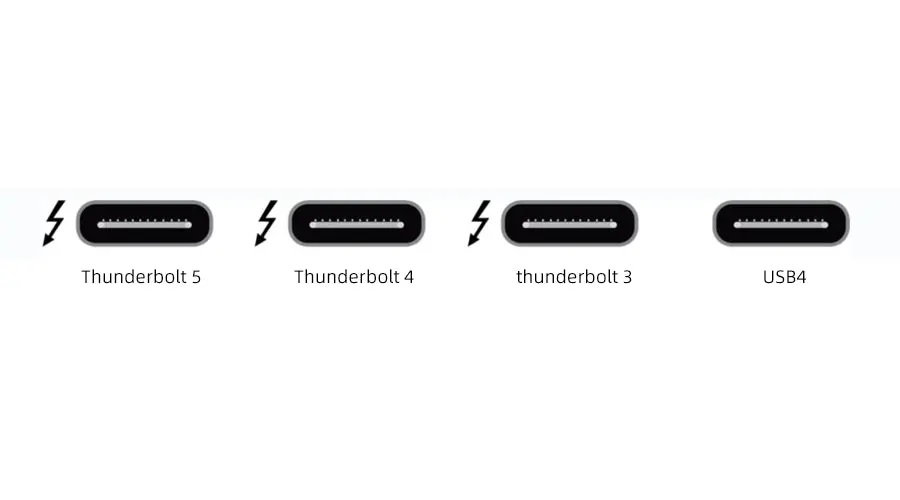
Since the ports look the same on the outside but are different on the inside, how can you tell what you’re dealing with before you even plug it in? Manufacturers understand this too and often leave clues right on the laptop’s body near the connector. These are small icons that tell you more about the capabilities in half a second than a cardboard box ever could. And here they are:
- The most desirable icon is the lightning bolt. This is Thunderbolt, meaning high data transfer speeds. Up to 40 Gbps for Thunderbolt 4 and up to 80 Gbps for Thunderbolt 5. Monitors can be connected, and docking stations work. So, if there’s a lightning bolt icon next to the port, that’s a strong indication of Thunderbolt support. However, you should still check the model specifications to confirm the standard’s generation.
- A DisplayPort icon or the letters ‘DP’ next to USB-C usually indicates support for DisplayPort Alt Mode.
- If there is a battery, plug or PD label nearby, it supports charging via USB-C – not just for a smartphone, but for the laptop itself, provided there is sufficient power.
- Sometimes there is a number next to the port – 10, 20, 40 or 80 Gbps. This is the speed of the USB-C port, and the higher it is, the better it is for working with fast SSDs or high-resolution screens.
And sometimes there is nothing at all. This doesn’t mean the port is faulty; it simply means there isn’t enough information on the casing. In this case, you need to visit the manufacturer’s website and check the specifications for your specific model. This applies particularly to laptops, all-in-one PCs, mini PCs and motherboards. A few minutes on the official website and you’ll know exactly what to expect, rather than guessing with the cable in your hands.
Why a USB-C cable isn’t always suitable for a monitor or docking station
We’ve sorted out the port, but there’s still the cable. And it’s the same story here. On the outside, it may look like a standard USB-C on both ends, but inside it may have completely different capabilities.
The most common types are:
- A cable for charging only. Suitable for a smartphone, headphones or a power bank. But it’s usually not suitable for a screen, a fast SSD or a docking station.
- A cable for charging and basic file transfer. You can use it to transfer photos or documents, but the speed won’t be high. For large videos and working with an external SSD, this is a poor choice.
- USB 3.2 or USB4 cable. These are needed if speed is important. For example, for an external SSD, large files, backups and data work, so you don’t have to wait long.
- A cable with video support. This is exactly what you need for a monitor via USB-C. However, it is important that not only the cable but also the laptop port, hub or docking station supports video.
- Thunderbolt cable. This is used for docking stations, multiple screens, fast storage devices, video capture cards or eGPUs. For version 4, look for 40 Gbps; for version 5, look for 80 Gbps.
- Power Delivery cable. This is essential for powering the laptop. Some can deliver 60W, others 100W, whilst newer models support Power Delivery 240W. If there isn’t enough power, the laptop will charge slowly or lose charge under load.
The biggest problems arise when you try to connect a screen or a docking station via a single port. The entire chain is involved here – the laptop port, the cable, the hub or docking station, and the monitor itself. If even one component does not support DisplayPort Alt Mode or Thunderbolt, the image may not appear at all.
There is also a milder scenario – the display works, but not as expected. For example, instead of 4K you get a lower resolution, instead of 120 Hz – 60 Hz, or the picture periodically disappears. Therefore, for a display, docking station or fast SSD, the label ‘USB-C’ alone is not enough. You need to look at the speed, video support, USB4, Thunderbolt, and the required Power Delivery wattage.
Technical differences between USB4, Thunderbolt 4 and Thunderbolt 5
The port and cable are now clearer. Now it’s time to sort out the names of the standards:
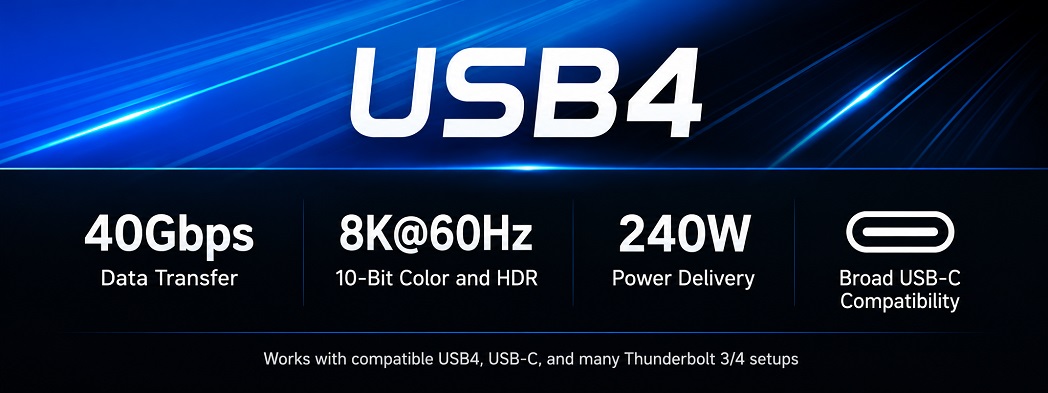
- USB4 is a fast standard for data transfer via USB-C. But its capabilities depend on the specific device. On one laptop it might be 20 Gbps, on another – 40 Gbps. Support for video, docking stations or external devices may also vary. So, the USB4 label is good, but you still need to check the specifications.
- Thunderbolt 4 is easier to assess before buying. If your laptop or docking station has this specific standard, you already have a rough idea of what to expect – high speeds of up to 40 Gbps, and reliable performance with docking stations, monitors and fast SSDs. USB4 is more complicated, as this name can cover a range of capabilities. This is the main difference between USB4 and Thunderbolt 4.
- Thunderbolt 5 is a newer and more powerful standard. It offers up to 80 Gbps in standard mode and up to 120 Gbps when more bandwidth is required for video. It also has a higher bandwidth for PCIe – up to 64 Gbps. This is important for very fast SSDs, professional docking stations, video capture cards, multiple monitors and external eGPUs.
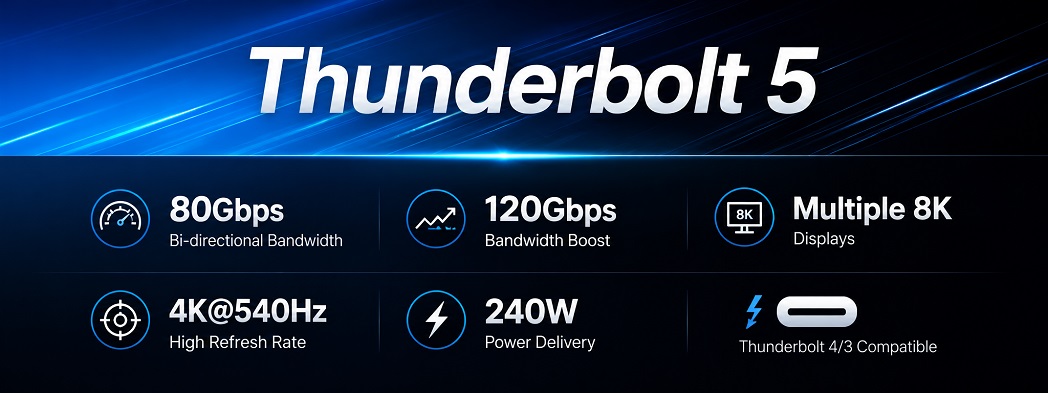
Put simply, for everyday tasks, charging a phone, a USB stick or a single basic display, all these Thunderbolt 5 specifications are not essential. However, for 4K and 8K displays, video editing, high-speed storage and complex docking stations, the extra bandwidth does make a difference. So don’t just look at USB-C, but at the specific standard of the port, cable and accessory.
Comparison table of interface specifications
In words, the difference may seem confusing. The table makes everything clearer:
| What we compare | USB4 | Thunderbolt 4 | Thunderbolt 5 |
| Speed | 20 or 40 Gbps. USB4 v2 – up to 80/120 Gbps | Up to 40 Gbps | 80 Gbps, and up to 120 Gbps for video |
| Video outputs | May be available if DisplayPort Alt Mode is supported | Usually supports 2 4K monitors or 1 8K monitor | Better suited for 3 4K monitors or 2 8K monitors |
| PCIe bandwidth | May be limited or not available everywhere | Up to 32 Gbps | Up to 64 Gbps |
| Charging via Power Delivery | Depends on the laptop, charger and cable | Supports up to 100W | Up to 240W via USB PD 3.1 with a compatible cable and device |
| External eGPU graphics card | Not guaranteed | May work if the laptop and graphics card are compatible | Works better thanks to wider PCIe bandwidth |
| Docking station compatibility | Can work well, but specifications should be checked more carefully | Usually high, because this standard has clear requirements for dock operation | High, with more headroom for video, fast SSDs and multiple devices |
If you need a simple charging cable, just check the PD power rating. If you need a monitor, look for DisplayPort Alt Mode or Thunderbolt. If you need a docking station with multiple devices, it’s best to go for Thunderbolt 4/5 or full-spec USB4 with verified specifications.
Pitfalls when choosing cables and docks
But understanding the standards is only half the battle. Now for the common mistakes made at the point of purchase. Yes, even after reading up and preparing, they still happen. So here are a few tips:
- A cheap USB-C cable for a monitor often only charges your smartphone. A monitor or a fast SSD won’t work with it.
- Long cables aren’t always ideal either; speeds drop over long distances. If you need to run the cable a long way, opt for an active Thunderbolt cable – it maintains the speed.
- For Thunderbolt 5, you need a cable that supports 80 Gbps. A standard one will plug in without any problems, but the speed will be lower than expected.
The same applies to hubs. A cheap one gets hot, throttles the SSD’s speed and delivers 60Hz on the monitor instead of a smooth 120Hz. And a docking station must be compatible not only with the laptop, but with everything you connect to it.
And most importantly. If you want to connect a 4K monitor, an SSD, the internet, a mouse and keyboard, and charge your laptop all via a single cable, a basic USB-C docking station won’t be enough. You’ll need one with plenty of bandwidth and powerful charging capabilities.
Applications in professional work
But a logical question arises – who actually needs to delve into such details? The honest answer is – not everyone. It depends on what you do:
- If you’re editing video or working with Raw files, a fast connection is crucial. Projects weigh in at hundreds of gigabytes, files are constantly being copied, and without a fast external SSD on Thunderbolt, you’ll simply be wasting time.
- If you want a workstation connected via a single cable, you’ll also need a robust standard. Plug your laptop into a docking station and your monitors, network, keyboard, mouse, audio and charging all work straight away. A standard USB-C port won’t cut it.
- If you have multiple displays, you can’t do without a high-speed port. Especially when you need 4K at 120Hz, HDR, and two at once. A cheap USB-C dock simply won’t recognise the second monitor.
- If you’re planning to use an external eGPU for gaming, 3D graphics or working with neural networks, it’s important to check not only for a USB-C port but also for PCIe tunnelling support. Most often, eGPUs are connected via Thunderbolt 3/4/5, though in some USB4 implementations this capability may also be available. Before buying, you need to check the compatibility of the specific laptop, eGPU box, graphics card and operating system.
- If your work involves professional audio or video, capture cards, audio interfaces, or streaming recorders, you won’t get anywhere without high-speed connectivity. Stability and minimal latency are key here.
But if you’re just checking your emails, charging your smartphone and plugging in a USB stick, you don’t need Thunderbolt 5. A standard USB-C will do the job. In other words, the more demanding the work, the more important the bandwidth reserve becomes. And for basic tasks, it’ll simply be sitting idle.
How to choose a docking station for a laptop
All the professional tasks listed above have one thing in common – they involve a docking station. It’s the docking station that connects the monitors, SSDs, peripherals and charger. And to ensure everything works seamlessly, you need to check the following before buying one:
- What port your laptop has. For example, an expensive Thunderbolt docking station won’t reach its full potential if your laptop has a standard USB-C port without Thunderbolt or DisplayPort Alt Mode.
- Whether it will charge the laptop. One might require 60W, another 100W. If the docking station provides less, the laptop will drain faster than it charges.
- How many monitors and what type. One 4K at 60 Hz is one thing. Two 4K at 120 Hz with HDR is quite another. Check whether it can handle your specific setup.
- What else needs to be connected. Wired internet, a memory card, headphones, extra ports for USB sticks. If the docking station doesn’t have it, you won’t be able to connect it.
- Will there be a fast SSD? If so, you’ll need decent bandwidth; otherwise, the SSD will only be operating at half its potential.
- What operating system you use. For Windows, it’s usually enough to check the port standard, drivers and dock specifications. For macOS, you need to check separately for support for multiple external monitors, Thunderbolt docks, DisplayLink, MST and eGPUs, as capabilities depend on the specific Mac model, processor generation and the dock itself.
And most importantly. If your laptop doesn’t have DisplayPort Alt Mode or Thunderbolt, even an expensive docking station won’t display the image on the screen. It simply won’t have a way to transmit the video. So check the port first, and only then look at the docking station.
Pre-purchase checklist
To avoid getting confused by all these standards, here’s a quick checklist of what to do before buying:
- Find out the exact model of your laptop, motherboard or mini PC.
- Check the official specifications to see which port version it has.
- Check whether it supports DisplayPort Alt Mode or Thunderbolt.
- Find out if Power Delivery is supported and what power output the laptop accepts.
- Determine how many monitors you plan to use and at what resolution.
- Choose a cable with the appropriate speed – 20, 40 or 80 Gbps.
- For Thunderbolt 4 or 5, use only certified cables and docking stations.
- Don’t focus on the shape of the connector – check the actual features.
- For demanding tasks, allow for some bandwidth headroom.
- Before buying, read reviews specifically for your laptop model and system.
Once you’ve gone through the list, you can buy with confidence. No more “it didn’t work” or “it turned out to be the wrong cable”.
So, a small connector might look the same, but in practice there are loads of differences. It’s not that hard to figure out, and you need to, otherwise you risk overpaying or buying something that won’t work. And if you’re still unsure – you can always consult the experts. The main thing is to clearly state your laptop model and exactly what you need, and together we’ll make sure you choose the right one.
Frequently asked questions
Can a Thunderbolt device be connected to a standard USB-C port?
Physically, yes. But Thunderbolt devices (especially older ones) often don’t work at all with a standard USB-C port. They require a specific controller in the laptop, so without Thunderbolt support, you risk ending up with a dead connection.
How does USB4 differ from Thunderbolt 4?
USB4 is a name that can cover a range of capabilities. One laptop might offer 20 Gbps, another 40. Thunderbolt 4 has clear minimum requirements – speed, video, and docking station support. In other words, version 4 offers greater predictability.
Do all USB-C cables support 100W or 240W charging?
No. The power output depends on the specific cable, charger and laptop. If even one part of the circuit is weaker, you’ll get the power that it can handle.
Why isn’t the monitor working via a USB-C hub?
Most often because the laptop port, cable or the hub itself does not support DisplayPort Alt Mode or Thunderbolt. Or they cannot handle the required resolution or refresh rate.
Does the average user need Thunderbolt 5?
No. For email, USB sticks, a smartphone and a single monitor, USB-C is sufficient. USB4, Thunderbolt 4 or 5 is needed by those who work with video, multiple monitors, fast SSDs or eGPUs.