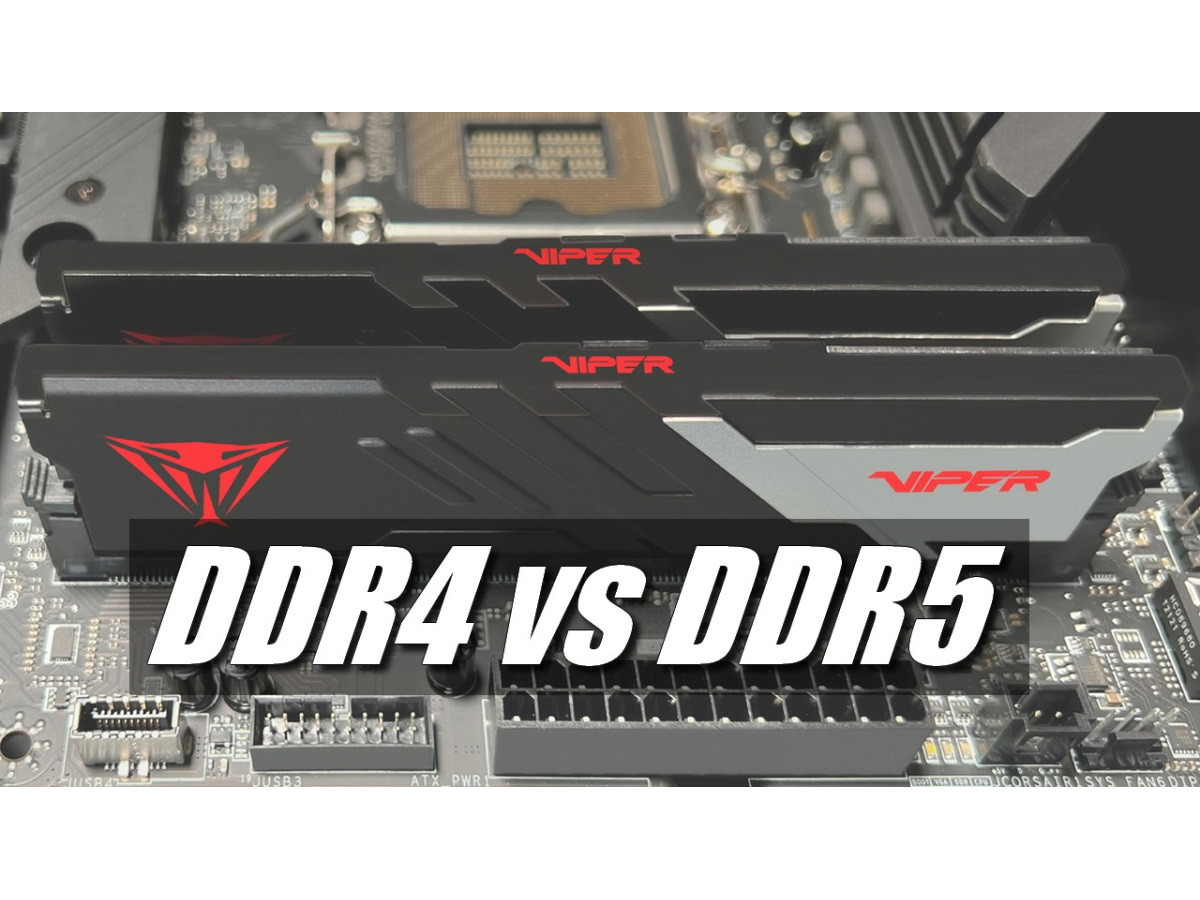
It’s a familiar situation for anyone who’s ever shopped for a laptop. Two models sit side by side—same processor, same screen—yet the price differs by several dozen euros. You scrutinize the specs, and the only difference is in a single line: DDR4 versus DDR5.
The salesperson says the newer memory is faster, and the product description also mentions higher bandwidth, but no one explains what that actually means for you personally. So the question of whether it’s worth paying extra for DDR5 always hangs in the air.
Let’s be honest: DDR5 is indeed faster, but during normal use, you’ll hardly notice the difference. How fast a laptop feels is influenced much more by the amount of memory than by its generation. So let’s start with the numbers listed in the product descriptions, and then see how they play out in real-world tasks and for whom DDR5 is actually worth it.
What Are DDR4 and DDR5
Let’s start with the basics. These are two generations of random-access memory, or RAM. DDR5 is newer and faster. DDR4 came out first but is still widely used, especially in more affordable refurbished laptops.
RAM itself is needed for what’s running right now:
- 20 open tabs in your browser;
- a document in Word;
- Zoom running.
All of this is stored in RAM. Turn off your laptop, and it’s cleared.
But people often confuse two different things here. RAM is not an SSD. Your files, photos, and programs are stored on the hard drive, and they don’t disappear anywhere after you shut down. RAM only works while the laptop is on, but it’s significantly faster than any hard drive.
And when there aren’t enough gigabytes, the system starts to struggle. Windows allocates part of the hard drive for a swap file (temporary storage for data that doesn’t fit in RAM) and works with that instead. Even a fast SSD processes data much more slowly than RAM and has significantly higher latency, so heavy use of the swap file leads to a noticeable slowdown.
Another source of confusion involves the names. Laptop specifications often list LPDDR5 or LPDDR5X, and these are not the same as standard DDR5. The letters “LP” stand for low power consumption; this variant is more energy-efficient and is used in thin ultrabooks. In most laptops, LPDDR5 and LPDDR5X are soldered directly onto the motherboard, so you can’t increase their capacity after purchase. Models featuring the new LPCAMM2 removable form factor may be an exception.
And a separate note on GDDR5, which is also often confused. This is video memory; it’s installed on the graphics card and has nothing to do with RAM. If you see GDDR6 in the description, it specifically refers to graphics memory.
Key Differences Between DDR4 and DDR5
In laptop specifications, the memory specs are listed in a single line that’s hard to make sense of. In reality, there are four differences:
|
Specification |
DDR4 |
DDR5 |
|
Typical Speed in Laptops |
2400–3200 MT/s |
4800–6400 MT/s |
|
Theoretical bandwidth |
19.2–25.6 GB/s |
38.4–51.2 GB/s |
|
Standard voltage |
1.2 V |
1.1 V |
|
Number of SO-DIMM pins |
260 |
262 |
Let’s explain the first line, because it’s the most important one. MT/s stands for millions of data transfers per second. Previously, descriptions used to say “megahertz,” but this notation is more accurate.
Now let’s talk about the bandwidth figures. The fastest standard DDR4-3200 offers 25.6 GB/s, while the base DDR5-4800 already delivers 38.4 GB/s. That’s a 1.5-fold difference, and it’s exactly what advertisers love to highlight.
However, this difference applies to the memory itself, not the laptop. The speed of Windows or your browser also depends on the processor, SSD, amount of RAM, and what you’re doing. Therefore, in real-world use, the difference between DDR4 and DDR5 turns out to be significantly smaller than the numbers suggest.
Before making a purchase, it’s worth checking compatibility with your processor. 8th–11th Gen Intel Core processors primarily work with DDR4; the 12th Gen supports both types; and newer platforms are already geared toward DDR5. Always check the specifications of the specific model for exact values.
Is the difference noticeable during everyday use?
Most often, the question of whether DDR4 or DDR5 is better is asked by those who need a laptop for work, school, and browsing the internet. So let’s focus specifically on these tasks.
In a web browser, the difference between DDR4 and DDR5 is usually almost imperceptible. Page load times and performance are more strongly influenced by your internet connection, processor, the complexity of the website, and having enough RAM. Even with 30 tabs open, it all comes down to your processor and the amount of RAM, not the generation of RAM.
For everyday work in Word and Excel, there generally won’t be a significant difference. The exception might be complex spreadsheets with large data sets and formulas.
With video, the situation is even simpler, because the graphics card handles the decoding. Netflix and YouTube will work the same on both generations.
For Zoom and Teams, internet stability, the processor, the camera, and sufficient memory are more important. When using video conferencing and a browser simultaneously, 8 GB may already be insufficient, whereas 16 GB ensures more comfortable multitasking.
It turns out that with enough GB of RAM and an SSD, the average user won’t notice a difference between the generations. Performance is much more heavily influenced by the processor, storage, and amount of RAM.
DDR4 or DDR5 for Gaming and Resource-Intensive Programs
With games and professional software, it’s a different story—though not as dramatic as the ads promise.
In gaming laptops, the CPU and graphics card remain the key components, while memory is rarely a bottleneck. DDR5 may offer a performance boost, but the result depends on the specific game, and it’s impossible to predict it in advance.
A more noticeable difference is seen when integrated graphics are used. Since integrated graphics don’t have their own video memory, they borrow a portion of the system’s RAM, so faster RAM does indeed help them.
In professional workflows, the benefits of DDR5 may be more noticeable:
- when compiling large projects;
- when working with virtual machines (RAM capacity is particularly important here);
- when processing large data sets.
In other words, in situations where a program is constantly moving huge amounts of data back and forth.
However, when it comes to video editing, 3D work, and graphics, the processor, graphics card, and having enough gigabytes all play an equally important role. Faster RAM alone won’t solve the problem if you simply don’t have enough of it.
Which is better—8 GB of DDR5 or 16 GB of DDR4?
Go with 16 GB of DDR4—you’ll almost always make the right choice.
When you don’t have enough gigabytes, the laptop starts offloading excess data to the hard drive, and you’ll notice it right away. You switch to another program, and it takes a few seconds to respond. You return to a tab, and it reloads from scratch. With 8 gigabytes, this starts happening as soon as you have ten tabs open and Zoom running. Faster RAM won’t help here. It only works when there’s enough of it.
So first, check how many gigabytes you have, and only then look at the generation. The same applies here: 32 GB of DDR4 will be more useful than 16 GB of DDR5 if you keep several resource-intensive programs open every day.
Can you replace DDR4 with DDR5?
No, you can’t. These are different standards with different connectors, and a DDR5 module physically won’t fit into a DDR4 slot. A laptop’s motherboard is also designed to support only one of these types.
Before planning an upgrade, you should check:
- whether there’s a free memory slot in the laptop;
- whether the memory is soldered directly onto the motherboard, since in that case it cannot be replaced;
- what is the maximum capacity supported by your model;
- what type of memory it supports at all.
The second point is the most important, especially in thin laptops. In these models, the memory may be soldered to the motherboard or installed in a separate slot. Soldered memory cannot be upgraded, but if there is a free SO-DIMM slot, you can add another module. Some laptop models combine both options.
How can you tell if you can increase the memory capacity in a specific laptop? You can find some of this information in Task Manager: open the “Performance” tab and the “Memory” section. It usually lists the current capacity, speed, and number of occupied slots. You’ll need to check the specifications for that specific model to confirm the maximum supported capacity, whether the memory is soldered in, and whether an upgrade is possible.
And if a slot is free, upgrading is usually inexpensive. Installing a second compatible module can enable dual-channel mode and increase memory bandwidth.
For the simplest and most predictable configuration, it’s best to use modules of the same capacity and speed. However, some laptops support partial dual-channel mode even with modules of different capacities. For laptops with integrated graphics, this provides a more noticeable performance boost than upgrading to the next generation.
Will DDR4 still be relevant in 2026?
Yes, absolutely. For office work, studying, web browsing, email, and most everyday tasks, it’s more than enough.
A laptop isn’t a bad choice just because it has DDR4. If it has a decent processor, an SSD, and 16 GB of memory, it can handle multitasking more comfortably than a model with 8 GB of DDR5, especially when many programs are open at the same time.
This is especially true for refurbished business laptops. These models were originally designed for corporate clients, so they feature a durable chassis, a good keyboard, and a decent screen—and they cost significantly less than new ones.
However, when choosing between DDR4 and DDR5 for a laptop, you need to consider the entire configuration at once. The battery condition, screen quality, SSD capacity, and price are just as important as the type of memory.
When It’s Worth Paying Extra for DDR5
DDR4 isn’t right for everyone or every situation. There are times when paying extra for a newer generation really makes sense. For example:
- a laptop with DDR5 costs only slightly more, while the rest of the specs are the same;
- you need performance headroom for the next few years;
- you plan to play games or run resource-intensive programs;
- the laptop uses integrated graphics, which takes up part of the RAM.
However, if you need the laptop for documents, schoolwork, and browsing the web, there’s no point in overpaying. Especially when a model with DDR4 offers more memory for the same price.
In this case, you shouldn’t focus on the generation itself, but rather on what you’ll get for the price difference. It’s often better to invest that money in the display, SSD, or processor, because those are the components you’ll notice every day.
There are two more metrics that shouldn’t be considered in isolation from other specifications. The first is timings (delays before a command is executed). With DDR5, the CAS Latency is usually higher, but it operates at a higher data transfer rate. Therefore, it’s incorrect to compare only the CL number: the actual latency depends on both speed and timings and can be close to that of DDR4 or slightly higher.
The second point is energy efficiency. DDR5 operates at a voltage 0.1 V lower than DDR4, and in theory, this should provide better battery life. But in practice, this doesn’t guarantee noticeably longer battery life. The overall result depends on the entire platform, and the display, processor, and graphics card typically consume the most power.
Conclusion
DDR5 is faster—that’s a fact. But during normal use, you won’t notice this speed difference.
Capacity is more important than the generation, so 16 GB of DDR4 is almost always better than 8 GB of DDR5. And that’s the main takeaway from this article.
DDR4 hasn’t gone anywhere and will remain a viable option in 2026. So don’t get caught up in the specs; instead, look at the big picture: the processor, memory, SSD, screen, and battery condition.
The Recorder.sk catalog features refurbished laptops with 16 GB of DDR4, which is sufficient for work, school, and most everyday tasks. Compare their processors, screens, storage, and prices with DDR5 models to choose the optimal configuration.